
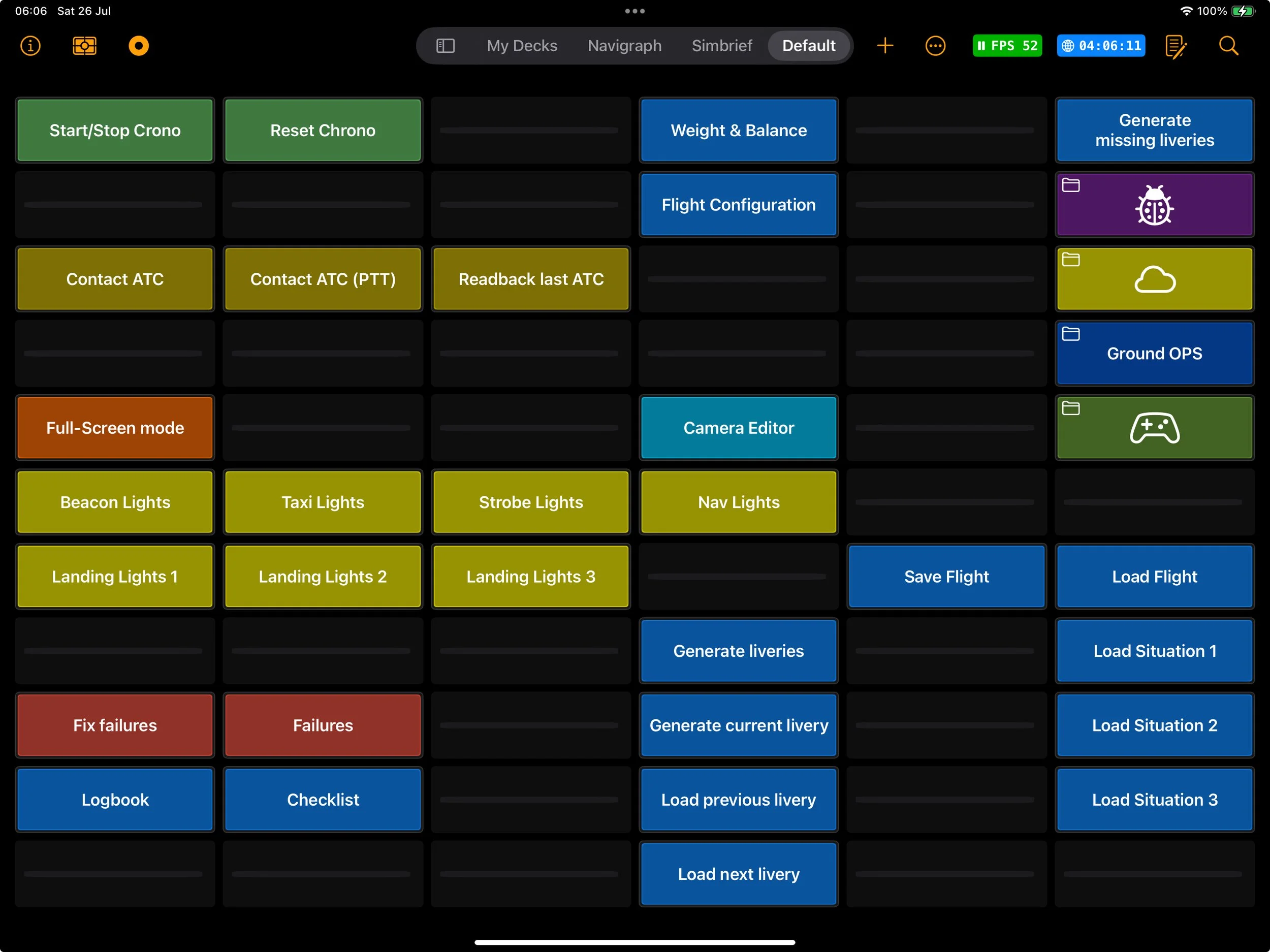
Dashboard widgets let you bring your most important controls inside your decks, instead of hunting for them in the main Dashboard.
You can expose:
- Entire dashboard folders as dedicated widgets
- Individual dashboard commands inside a global Dashboard widget
Perfect for things like quick lighting controls, pushback, views, doors, checklists triggers, etc.
Types of dashboard widgets
1. Folder widgets
Any Dashboard folder can become its own widget.
- Each enabled folder gets its own widget, with the same commands you see in the Dashboard.
- You can place this widget directly inside your decks, like any other module.
- Great for grouping related actions:
- “Ground Ops”
- “Lighting”
- “Audio / ATC”
2. Global command widget
If you don’t want a whole folder, you can still expose single commands.
- All enabled single commands are collected inside one global Dashboard widget.
- That widget gives you quick access to those commands from anywhere you drop it in your decks.
- Ideal for “always handy” stuff:
- PA chime
- Seat belts
- Pause / unpause
- Custom macros
How to enable a Dashboard folder as a widget
- Open the Dashboard.
- Edit the folder you want.
- Enable “Show as widget”.
- Go back to your Deck editor and add the widget like any other module.
Once enabled, that folder will appear as its own widget, ready to be dropped into any deck.
How to expose single commands in the global widget
- Open the Dashboard.
- Edit the command you want to make available.
- Enable “Show as widget”.
- Add the Dashboard widget to your deck.
Every command with “Show as widget” enabled will automatically appear in that global widget.
When to use what
- Use folder widgets when you want a self-contained panel of related actions.
- Use the global widget when you just need a handful of key commands always one tap away.
That’s it: flip “Show as widget” on folders and commands, drop the widgets in your decks, and your dashboard becomes part of your cockpit layout instead of something you have to reach for.