
Welcome to the Deck Browser. This is where you discover, filter, and manage all your Decks — including your favorites, recently used items, recommended Decks for your aircraft, and more. This guide walks you through everything you need to know to get the most out of the Deck Browser.
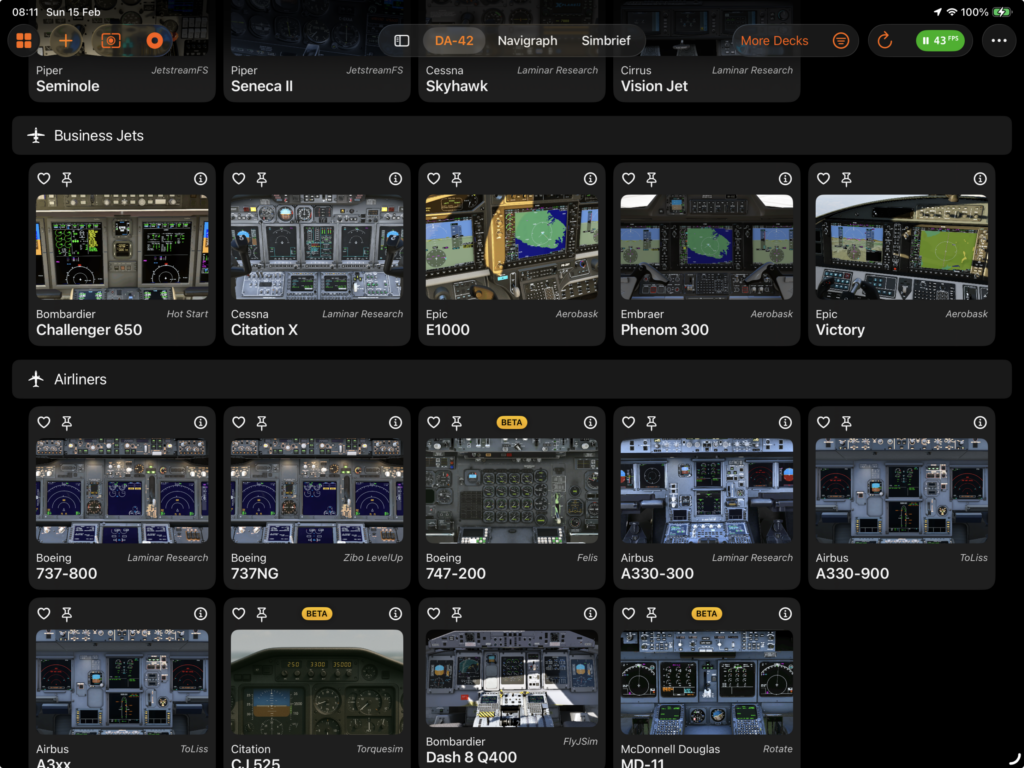
Overview
The Deck Browser organizes Decks into clear sections and lets you switch between different layouts depending on your preference:
• Icons: Large, visual cards ideal for browsing
• Cards (Compact): Denser layout for scanning more content at once
• List: Spreadsheet-style view with sortable columns and multi-selection (iPad/macOS)
You can search across name, manufacturer, developer, and description; filter what’s shown; and quickly access the store to discover more Decks when available.
Sections
Depending on your settings and what’s available, you’ll see the following sections:
• Favorites: Your favorite Decks
• Recent: Decks you used most recently
• Featured: New and highlighted Decks (visible when Factory Decks)
• Recommended Decks: Compatible with your currently loaded aircraft
• Categories: Decks grouped by system (FMS, Autopilot, Radios, etc.)
Tip: Some sections only appear when enabled in the toolbar menu.
Searching
Use the search field at the top to find Decks by:
• Name
• Manufacturer
• Developer
• Description
Search matches across all fields, and multiple terms refine results (e.g., “Boeing FMC”).
Filters and Options
Open the Filter menu from the top-right toolbar (three lines icon) to control visibility:
• Show Recent: Toggle the Recent section
• Show Recommended: Show Decks that match your current aircraft
• Show Hidden: Include Decks you’ve hidden
• Focus Mode: Only show Decks applicable to the currently loaded aircraft
The Filter icon fills when a filter is active.
Focus Mode
Focus Mode helps you stay on task by showing only Decks that are applicable to your current setup. It requires:
• X-Plane connected
• Aircraft info loaded
If Focus Mode is on but nothing appears, you’ll see a helpful footer explaining why, with quick actions to:
• Retry connection
• Reload aircraft info
• Disable Focus Mode
Note: In Focus Mode, icons and cards are larger.
My Decks vs More Decks
Use the My Decks / More Decks button in the top-right:
• My Decks: Shows installed and available Decks based on your purchase status and focus settings.
• More Decks: Shows all the Factory Decks available to browse, including featured items and store content.
If you’re not on Premium, you’ll see purchase options for Decks (including FREE items when available).
Managing Decks
• Selecting a Deck: Tap/click a Deck to open or load it.
• Context Menu (List Mode): Right-click or tap-hold to show actions (favorite, hide, open inspector, etc.).
• Inspector: When supported, open the Inspector to view and edit Deck details.
• New Deck (Premium only): Use the + (New Deck) button in the toolbar to create a new Deck via the Deck Composer.
Compatibility and Recommendations
When your aircraft is loaded and X-Plane is connected, the browser can highlight compatible Decks:
• A checkmark badge may appear for matching Decks
• The Recommended Decks section lists best-fit options first
• Exact matching behavior improves when Focus Mode is applicable
Hidden Decks
If you’ve hidden a Deck, it won’t appear unless you enable Show Hidden in the filter menu. This is helpful for decluttering your workspace while keeping access when needed.
Troubleshooting
• No Decks Showing in Focus Mode:
• Ensure X-Plane is connected
• Ensure aircraft info is loaded
• Use the footer actions to retry or disable Focus Mode temporarily
• I Can’t See Recent or Recommended:
• Enable “Show Recent” or “Show Recommended” from the Filter menu
• Store Buttons Don’t Appear:
• If you’re on Premium or the Deck is already installed/purchased, store options won’t be shown.
Tips
• Use Favorites to pin frequently used Decks to the top
• Try the Compact view to scan many Decks quickly
• Use the search field to narrow down by manufacturer or developer
• Toggle Focus Mode when switching aircraft to instantly filter compatible Decks
Related
• Deck Composer (Premium): Create and edit your own Decks
• Deck Inspector: View details and configuration for a selected Deck
• Store: Browse, preview, and purchase Decks directly
If you need more help or have feedback, visit our Support Center or contact us directly through the app.