
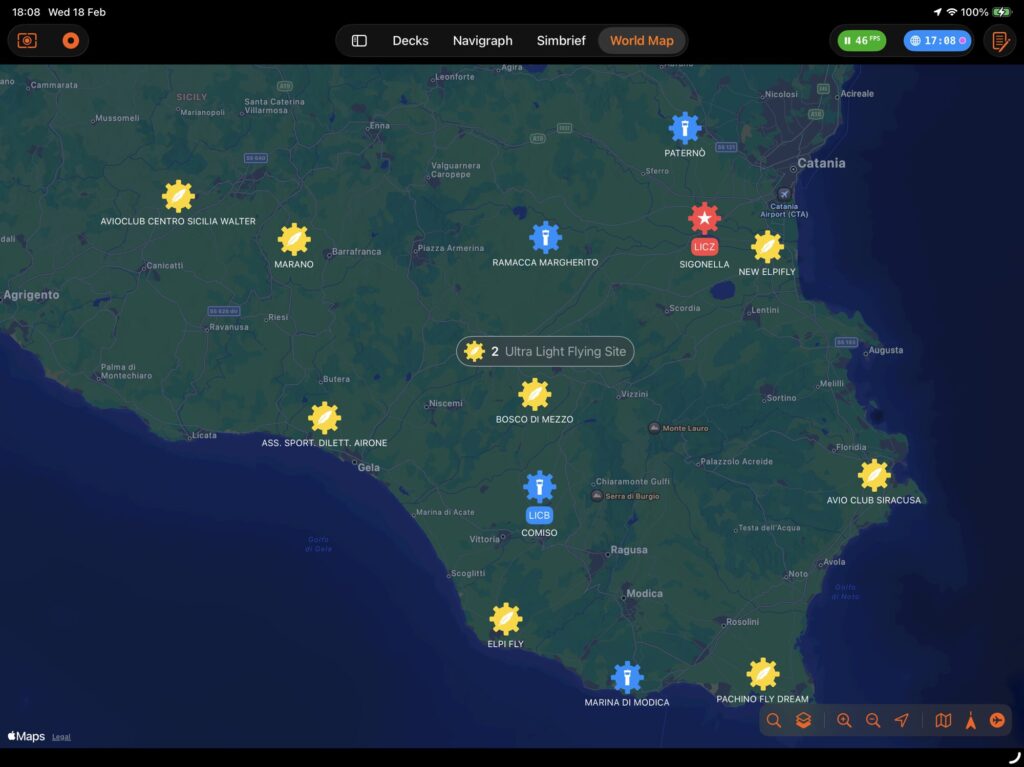
World Map is Flight Deck ONE’s global situational-awareness view. It plots your fleet, nearby airports, navaids, and live weather on an interactive map — and lets you teleport your simulator aircraft to any runway in the world with a single tap.
Contents
- Map Overview
- Toolbar Controls
- Map Annotations
- Callouts & Inspectors
- Search
- Filters
- Aircraft Positioning
- Flight Path & Overlays
- Weather (METAR)
- Map Settings & Preferences
1. Map Overview
Open World Map from the sidebar. The view fills the screen with a live map centred on your current simulator aircraft. All map state — camera position, zoom level, map style, and follow mode — is saved automatically and restored the next time you open the view.
What Is Shown by Default
- Current simulator aircraft — always visible; icon rotates to match the true heading.
- Hangar aircraft — blue icons at each aircraft’s last known position.
- Airports — colour-coded icons loaded from OpenAIP within the visible region.
- Navaids — purple icons (VOR, NDB, DME, TACAN variants) co-located within the region.
- Flight path — a colour-graded polyline of your current or most recent recorded flight (if available).
OpenAIP Required. Airport and navaid data is sourced from OpenAIP. If no API key is configured a warning is shown. Add your key in Settings → Premium → World Map.
2. Toolbar Controls
A toolbar sits at the bottom-right of the map. All controls are available at all times. ButtonIconWhat it does
Search
Show or hide the search bar. Results appear after you type at least 4 characters.
Filter
Open the filter popover to toggle which airport and navaid types are shown.
Zoom In
Halve the camera distance for a closer view.
Zoom Out
Double the camera distance for a wider view.
Centre / Follow
Single tap: centre map on aircraft once. Double-tap: enable follow mode (map continuously tracks the aircraft).
Map Stylemap
Toggle between standard map and satellite / hybrid. Satellite mode also enables 3-D terrain and globe view.
Rotate
When on, the map heading rotates to match the aircraft’s true heading.
Location Mode
Toggle between centring on the simulator aircraft and centring on your physical device location.
Zoom Behaviour
Pinch-to-zoom and scroll-wheel zoom work as expected. Annotations automatically cluster when the camera distance exceeds 50 km, keeping the map readable at high altitudes.
3. Map Annotations
Every object on the map is one of six annotation types, each with its own icon design and behaviour.
Simulator Aircraft
A green aircraft silhouette placed at the real-time position reported by X-Plane. The icon rotates to match the true heading. It is never merged into a cluster and is always on top when aircraft priority is enabled.
Hangar Aircraft
Blue aircraft icons for every aircraft in My Hangar, placed at their last known airport. They cluster together when zoomed out and always show a callout with Load and Edit shortcuts.
Airports
Airport icons are colour-coded and shaped by type:
- International Airport
- Civil
- Civil-Military
- IFR Airfield
- Closed Aerodrome
- Civil or Military Heliport
- Agricultural Landing Strip
- Landing Strip
- Altiport
- Water Aerodrome
- Glider Site
- Ultralight Site
- Military Aerodrome
When a navaid is located within 5 km of an airport, up to three small navaid badge icons are shown directly on the airport pin. The full list appears in the airport callout.
Navaids
Purple icons represent navigation aids. Each type has its own icon (vor, ndb, dme, tacan, vor_dme, vortac, dvor, dvor_dme, dvortac). Navaids that are co-located with an airport do not appear as standalone pins; they are shown as badges on the airport icon instead.
Custom Pins
Red map pins you drop by long-pressing (or right-clicking) anywhere on the map. They are never merged into clusters. Each pin shows its coordinates and offers positioning actions.
Points of Interest
Teal icons sourced from Apple Maps when you search for a location. POIs cluster together when zoomed out. Tapping a POI cluster shows a list of the items it contains.
4. Callouts & Inspectors
Tap any annotation to open its callout bubble. Every callout has an info (ⓘ) button to open the full inspector overlay.
Airport Callout
- Airport name, ICAO and IATA codes.
- Runway list with length and surface for each runway.
- Start at Threshold button per runway — positions your aircraft at the threshold with the correct heading and elevation.
- Co-located navaids with frequency badges.
Airport Inspector (full panel)
Opened from the callout’s ⓘ button. Three tabs: TabContents Runways One card per runway: designator, surface composition, surface condition, length in metres. Each card has a Start at Threshold button. Frequencies All published frequencies (Tower, Ground, ATIS, Approach, etc.) with a tune button to set the active COMM radio frequency. METAR Live METAR from NOAA: wind speed/gusts/direction, visibility, temperature, dew point, altimeter (hPa and inHg), and cloud layers. See Section 9 for full details.
The Details section is always visible at the bottom of the inspector and shows: type, ICAO, IATA, country, elevation (m MSL), and traffic type.
Navaid Callout
Shows the navaid type, identifier, and frequency. No inspector tab — all relevant information is in the callout.
Aircraft Callout
Shows name, registration, base airport, and current location. Two action buttons:
- Load — restore this aircraft’s saved situation in X-Plane.
- Edit — open the aircraft in My Hangar’s inspector.
Custom Pin Callout
Shows the latitude and longitude of the pin. Two action buttons:
- Get Me Here — teleport the simulator aircraft to this exact coordinate (elevation looked up automatically).
- Remove Pin — delete the custom pin from the map.
POI Callout
Shows the POI name and address. The Zoom Here button flies the camera to that location.
5. Search
Tap the magnifying-glass button to reveal the search bar.
- Type at least 4 characters — results appear automatically as you type.
- Results are sorted by distance from the current map centre.
- Tap a result to fly the camera to that location.
- Press Esc or clear the field to dismiss results.
What Is Searched
Result typeMatched fields AirportName, ICAO code, IATA code Hangar AircraftDisplay name, registration, base airport, current airport Point of InterestApple Maps local search (name, address)
Search Radius
By default the search is limited to the visible region (scaled between 20 km and 1,000 km based on the current zoom level). Enable the Global Search toggle in the search bar to expand the radius to 2,000 km and find airports anywhere in the world.
6. Filters
Tap the filter button to open the filter popover. Changes take effect immediately and are applied to the currently visible region.
Airport Types
- International Airport
- Airfield Civil
- Airport Civil Military
- Airport / Airfield IFR
- Aerodrome Closed
- Heliport Civil
- Heliport Military
- Agricultural Landing Strip
- Landing Strip
- Altiport
- Aerodrome Water
- Glider Site
- Ultralight Flying Site
- Military Aerodrome
Navaid Types
- NDB
- DME
- TACAN
- VOR
- VOR-DME
- VORTAC
- DVOR
- DVOR-DME
- DVORTAC
Each section has Select All and Deselect All buttons. All types are enabled by default. Disabled types are hidden from the map but not deleted from the data cache.
7. Aircraft Positioning
World Map gives you several ways to move your simulator aircraft to any location in the world without leaving the app.
Start at a Runway Threshold
- Tap an airport annotation to open its callout.
- Find the runway you want in the runway list.
- Tap Start at Threshold.
The aircraft is placed at the threshold coordinate. Heading is derived from the runway designator (e.g. runway 27R = 270°) with a magnetic declination correction applied automatically. Elevation is taken from the runway threshold data; the airport MSL elevation is used as a fallback.
Teleport to a Custom Location
- Long-press (or right-click) anywhere on the map to drop a red custom pin.
- Tap the pin to open its callout.
- Tap Get Me Here.
Elevation is looked up automatically from a digital elevation model (OpenTopoData SRTM, with OpenElevation as a fallback) so the aircraft spawns at the correct altitude.
Centre the Map on the Aircraft
Single-tap the Centre button to jump the camera to the aircraft once. Double-tap (within 1.2 s) to enable Follow mode — the map continuously pans to keep the aircraft centred. Follow mode is indicated by a filled location icon. It disables automatically when you pan the map manually.
8. Flight Path & Overlays
Flight Path Polyline
When a flight is recorded in the LogBook’s Black Box, World Map draws a smooth polyline tracing the route. The line is colour-graded by flight phase: PhaseColour transition ClimbYellow → Purple CruisePurple (sustained) DescentPurple → Green
Line width is 3 pt with rounded joins and caps.
Runway Overlays
When you tap an airport, its runways are rendered directly on the map:
- Centreline — a white polyline along the runway axis.
- Runway rectangle — a filled polygon showing the physical footprint of the runway (shown when width data is available).
Clustering
When the camera distance is 50 km or more, nearby annotations of the same type merge into a cluster capsule showing a count. Tapping a cluster reveals a list of its members. The current simulator aircraft is always shown as a standalone pin and is never clustered.
9. Weather (METAR)
Live METAR data is available for any airport via the Airport Inspector’s METAR tab. Data is fetched from NOAA on demand each time you open the tab. SectionFields WindSpeed (kt), gusts (kt), direction (°) VisibilityReported visibility in metres TemperatureTemperature (°C), dew point (°C) AltimeterQNH in hPa and inHg CloudsList of cloud layers: coverage and base altitude (hundreds of feet)
The observation time of the METAR report is displayed at the top of the section.
10. Map Settings & Preferences
The following preferences are saved automatically and persist across sessions. PreferenceDefaultWhere to change Map style (standard / satellite)StandardMap Style button in toolbar Rotate map with headingOffRotate button in toolbar Follow aircraftOnCentre/Follow button (double-tap) Location mode (aircraft / device)AircraftLocation Mode button in toolbar Global searchOffToggle in search bar Camera position & zoomMilan, ~30 kmSaved automatically on pan/zoom OpenAIP API key Premium—Settings → Premium → World Map
Tip. Satellite mode enables 3-D terrain, 3-D buildings (where available), and a globe view at high zoom-out levels — useful for planning long-haul routes at a glance.
Flight Deck ONE — World Map User Guide