
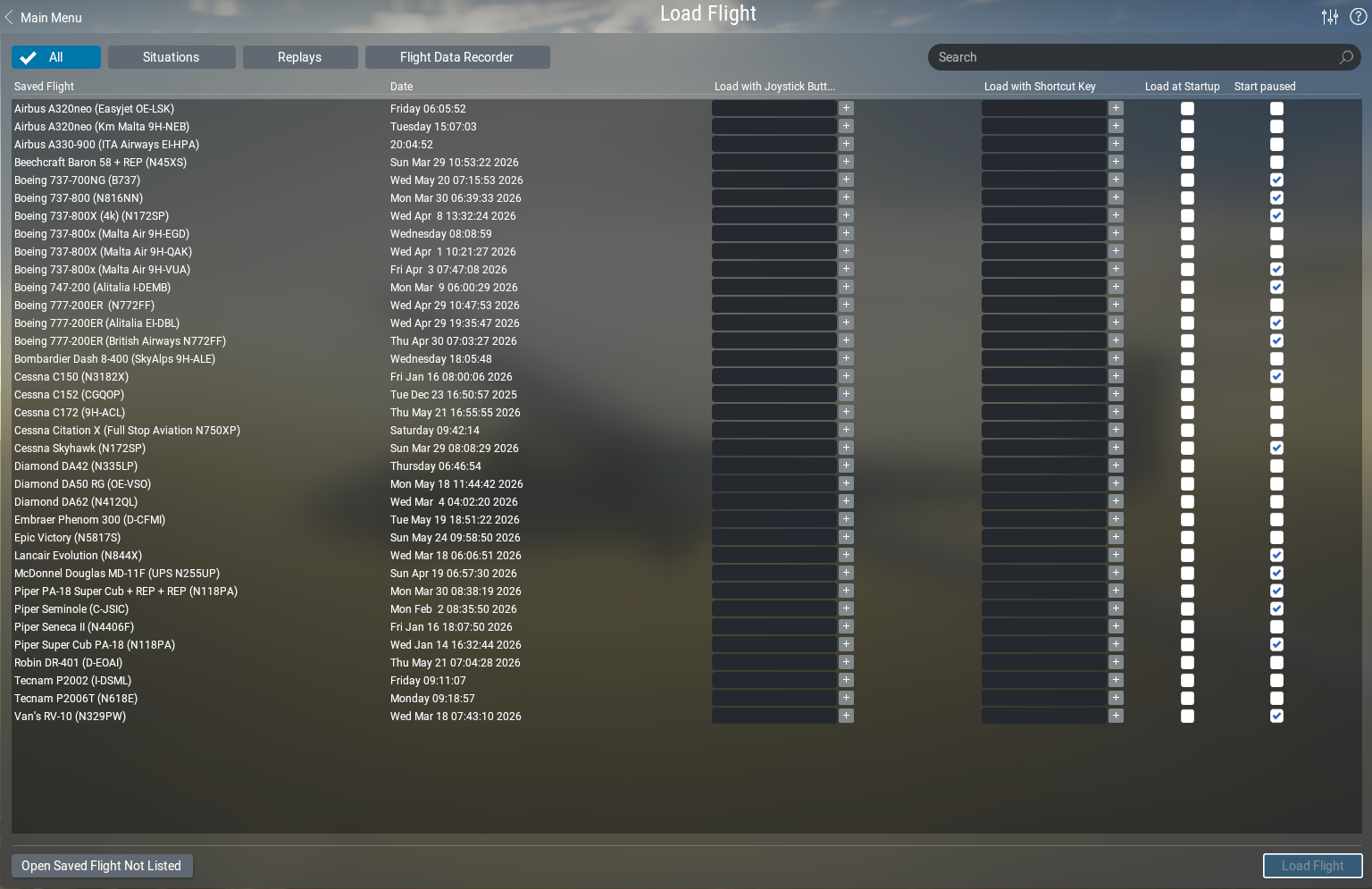
X-Plane’s Situations system lets the simulator save and restore the complete state of your flight — aircraft position, heading, altitude, airspeed, and more — into a .sit file. Think of it as a “save game” for your simulator session.
Flight Deck ONE builds on top of this native feature by automatically managing your situation files for you. Instead of manually saving from X-Plane’s menu every time, Flight Deck ONE tracks where your aircraft is and keeps a dedicated situation file per aircraft up to date in the background.
Auto-Save: Always Picking Up Where You Left Off
Every time you fly with Flight Deck ONE connected, the app periodically saves your situation to a file named after your aircraft:
Output/situations/Airbus A320neo (Easyjet OE-LSK).sitThe naming follows the pattern <Aircraft Name> (<Company> <Registration>).sit, so each aircraft in your Hangar gets its own dedicated slot. If the aircraft isn’t in your Hangar, Flight Deck ONE falls back to the X-Plane name and tail number.
A few things to know about Auto-Save:
- It only saves while airborne. Flight Deck ONE won’t overwrite your last saved situation while you’re parked — this protects the “last known in-flight position” from being replaced by a cold & dark state.
- It saves every 5 minutes by default. You can adjust this interval (or disable it entirely) under Settings → Premium → Situations.
- Hangar-only mode. If you prefer Flight Deck ONE to only auto-save for aircraft you’ve added to My Hangar, enable Auto-Save for Hangar Aircraft Only in settings. This is useful if you fly multiple aircraft but only want to track specific ones.
Loading a Situation from Flight Deck ONE
From My Hangar
Select an aircraft in My Hangar, then tap Load Last Situation. Flight Deck ONE will tell X-Plane to load the .sit file associated with that aircraft. This is the fastest path back to your last session.
From the Control Center
While a Deck is active, a Load last saved Situation button is available in the Control Center. This loads the situation that was last associated with the current Deck — useful if you use different Decks for different aircraft.
From the Aircraft Inspector
Open an aircraft’s detail view in My Hangar. If a situation has been saved, you’ll see a Load Situation button directly in the inspector.
Flight Deck ONE shows a loading overlay while X-Plane processes the situation file. Once dismissed, your aircraft will be back exactly where you left it.
Loading a Situation Directly from X-Plane
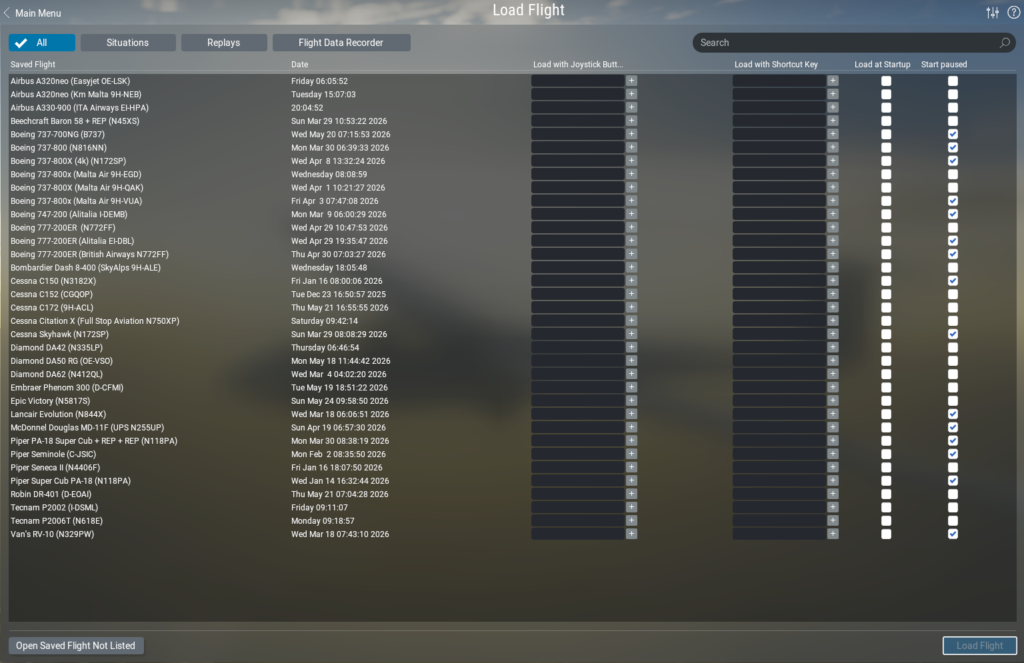
Because Flight Deck ONE saves standard X-Plane .sit files, you can also load them directly from X-Plane’s own Load Flight screen — no Flight Deck ONE interaction needed.
- In X-Plane, open Load Flight from the main menu (or the in-sim menu).
- Switch to the Situations tab.
- You’ll see your Flight Deck ONE-saved situations listed by name (e.g., Airbus A320neo (Easyjet OE-LSK)).
- Select the entry and click Load Flight.
Aircraft Compatibility & Workarounds
Not all aircraft handle X-Plane situations equally. This is a limitation of the aircraft add-on, not Flight Deck ONE.
Cold & Dark saves are always safe. If your aircraft was parked at a gate when Flight Deck ONE last saved, loading that situation is reliable regardless of the aircraft type. Flight Deck ONE will warn you if you try to load a situation from My Hangar when the aircraft last known state was airborne.
For third-party aircraft with their own auto-save (ToLiss, FlightFactor, Zibo, etc.):
Professional add-ons like the ToLiss A320, FlightFactor 777, and Zibo 737 maintain their own internal state saves that are separate from X-Plane’s .sit system. If X-Plane crashed mid-flight, here’s the recommended recovery sequence:
- Load the Flight Deck ONE situation — either from My Hangar or from X-Plane’s Load Flight screen. This restores your position, but the aircraft avionics and engines will likely be in a default state.
- Once inside the simulation, use the aircraft’s built-in recovery menu to restore the aircraft’s own saved state.
This two-step approach gets you back in the air with both the correct position and the correct aircraft state.
Best Practices
- Let Auto-Save run
The default 5-minute interval is a good balance — frequent enough to recover from a crash, infrequent enough not to interfere with performance. - Add your main aircraft to My Hangar
Named situations are per-aircraft, so adding them to the Hangar ensures clean, consistent filenames that are easy to find in X-Plane’s Load Flight screen. - Don’t load an in-flight situation into a cold aircraft
If you shut everything down and parked, the last auto-saved situation may be from cruise altitude. Use the cold & dark save instead (the most recent one made while parked). - Enable “Show main menu at sim launch” in X-Plane settings
This prompts X-Plane to open the main menu on startup, where you can choose your aircraft before the simulation begins — much like selecting and loading an aircraft directly from My Hangar in Flight Deck ONE.