
Overview
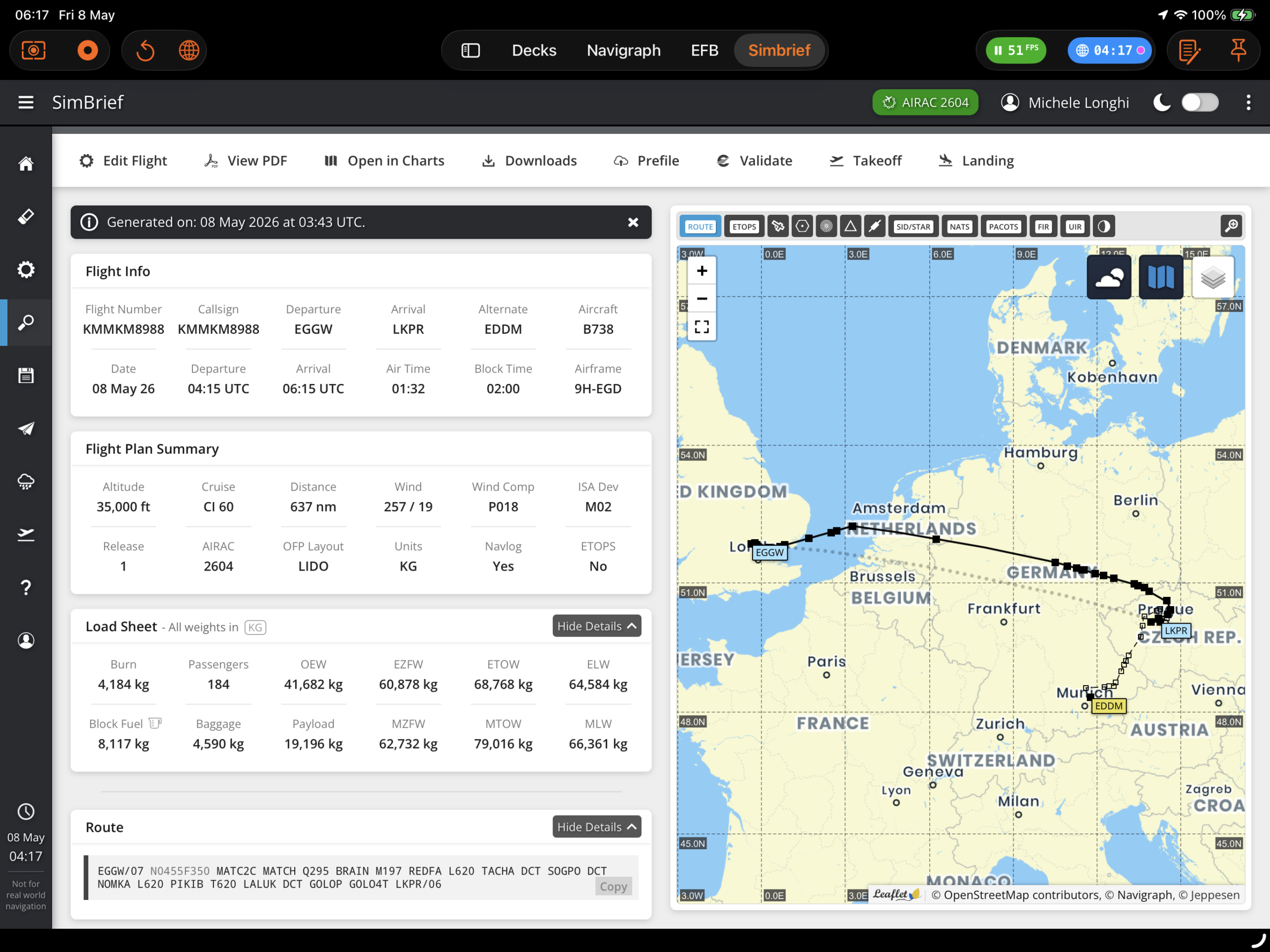
SimBrief integration is a Premium feature that allows pilots to fetch their Operational Flight Plan (OFP) directly inside Flight Deck ONE. Once loaded, the OFP enriches the World Map, Scratchpad, and flight info displays with route, weather, fuel, and timing data.
Setup
1. Enter your SimBrief Pilot ID
Navigate to Settings > Integrations and enter your numeric SimBrief Pilot ID in the designated field. You can also enter it during the Premium Wizard onboarding flow.
Your Pilot ID can be found at dispatch.simbrief.com/account. It is a numeric identifier (not your username or email).
The Pilot ID is stored locally in the app and is used exclusively to query the SimBrief API for your latest OFP.
Fetching a Flight Plan
There are several ways to load your active SimBrief OFP:
Manual fetch:
- Tap the flight info bar at the top of the screen while a flight is active
- Use the “Fetch SimBrief Plan” button in the Scratchpad widget
- Use the Flight > Fetch SimBrief Plan menu command
Automatic fetch:
- When you change aircraft in the simulator, the app silently fetches your latest OFP and applies it automatically if the aircraft ICAO type and departure airport match
- When a flight starts, the app fetches and validates the OFP against the current aircraft and airport
Auto-fetch only applies an OFP if the aircraft ICAO type matches the SimBrief plan and the departure airport matches the aircraft’s current position. It will not overwrite a manually loaded OFP.
What Gets Displayed
World Map:
- Route polyline color-coded by flight phase:
- Pink — Climb / SID
- Purple — Cruise / Enroute
- Green — Descent with STAR procedure
- Orange — Descent / Approach
- Airport pins labeled DEP, ARR, and ALTN (alternate)
- Named waypoints along the route (lat/lon fixes are excluded)
Scratchpad widget:
- A highlighted plan card showing:
- DEP → ARR with airline and flight number
- Full ATC-format route string (DEP/RWY SID … STAR ARR/RWY)
- Alternate airport (if filed)
- Cruise altitude or step-climb profile
Flight info bar:
- TOD
Time to Top of Descent (countdown or Zulu clock time) - DTD
Distance to destination in nautical miles (computed by projecting aircraft position onto the route) - ETA
Estimated time of arrival (Zulu), offset from scheduled arrival by actual takeoff time
TOD and ETA Calculations
Top of Descent (TOD):
- Primary method: finds the TOD/T/D fix in the navlog and computes an absolute time by offsetting from actual takeoff time
- Fallback: finds the first descent-phase fix, calculates current distance to it, and estimates time remaining based on groundspeed
ETA:
- Computed from the scheduled arrival time in the OFP, offset by the difference between actual and planned takeoff times
Both values update live as groundspeed and position change during flight.
Validation
When an OFP is loaded (manually or automatically), the app validates it against the current simulator state:
- Aircraft ICAO type must match the OFP aircraft type
- Departure airport must match the aircraft’s current location
If validation fails on auto-fetch, the OFP is discarded silently. If a manually loaded OFP fails validation, a warning message is shown but the OFP remains loaded.
Premium Requirement
SimBrief integration requires an active Flight Deck ONE Premium subscription with the SimBrief capability enabled. The feature is gated via PremiumCapability.simBrief and is always enabled in debug/development builds.