
What is Sources?
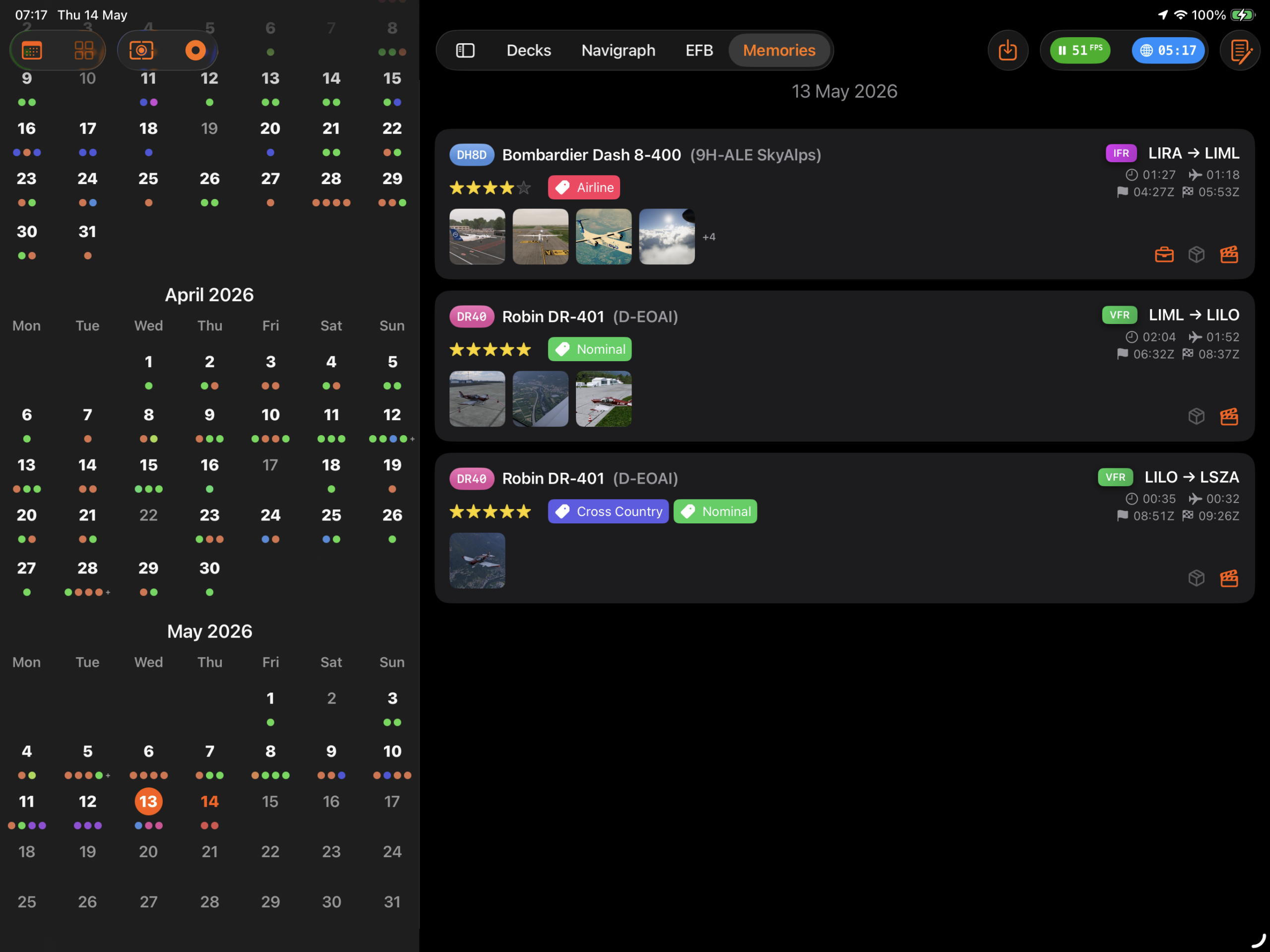
Sources is the mechanism that connects Flight Deck ONE to your simulator files. Once configured, it automatically collects screenshots, flight plans, and other files at the end of each flight and attaches them to the right Memories entry — no manual import needed.
X-Plane Folder
The recommended starting point. Connect Flight Deck ONE to your X-Plane installation over your local network, and the app automatically knows where to find your screenshots and flight plans — no further source configuration needed.
Step 1 — Share your X-Plane folder over the network
Windows
Right-click the X-Plane 12 folder → Properties → Sharing → Advanced Sharing. Enable sharing and set your user’s permission to Read (or Read/Write if you want the app to be able to remove imported files).
Mac
System Settings → General → Sharing → File Sharing. Add the X-Plane 12 folder, click Options, and enable SMB sharing. Set permission to Read Only or Read & Write as needed.
Linux (Ubuntu/Debian)
Right-click the X-Plane 12 folder and select Local Network Share. Enable access and optionally allow others to write. Install Samba if the system prompts you.
Read vs. Write access
Read access is all that’s needed to collect files into Memories. If you enable Remove original files when added to Memories in Settings, the app also needs Write access to the shared folder — otherwise that option has no effect on network sources.
Step 2 — Connect in Flight Deck ONE
- Open Settings → Memories or Settings → Simulator and tap X-Plane Folder.
- In the iOS file browser, your computer appears by name under Network in the sidebar. Tap it and log in with your computer credentials.
- Select your
X-Plane 12folder and tap Open.
If your computer doesn’t appear automatically, tap ··· in the sidebar, select Connect to Server, and enter smb://[your computer's IP address].
What Gets Collected Automatically
Once the X-Plane folder is set, Sources picks up the following at the end of each flight:
- Screenshots — images saved by X-Plane during the session, found in
Output/screenshots. - Flight plans —
.FMSand.FLPfiles used during the flight, found inOutput/FMS plans.
Files are matched to the active Memories entry by flight time and assigned to the correct card automatically.
Advanced: Custom Sources
If you need to collect files from additional locations — a different simulator, a specific export folder, or a cloud drive — you can add custom sources manually.
Adding a custom source
- Open Settings → Memories and tap Add Source.
- In the iOS file browser, navigate to the folder you want to add. Network computers appear by name under Network in the sidebar. If a computer doesn’t appear, tap ··· → Connect to Server and enter
smb://[IP address]. - Select the folder and assign a Source Type: Media, Flight Plans, or Other.
Cloud sync via symlinks
If you prefer routing a specific subfolder through a cloud drive (iCloud, Google Drive, OneDrive, or Dropbox), you can use a symbolic link to redirect X-Plane output transparently. This works well for screenshots but is not suited for the full X-Plane folder.
Requirement: The desktop app for your cloud provider must be installed and running on your simulation computer.
Move the target subfolder (e.g. Output/screenshots) into your cloud drive, then create a symlink in its original location pointing to the new path.
Windows — run Command Prompt as Administrator
| Cloud Drive | Command |
|---|---|
| Google Drive | mklink /D "C:\X-Plane 12\Output\screenshots" "G:\My Drive\XPlane_Screenshots" |
| OneDrive | mklink /D "C:\X-Plane 12\Output\screenshots" "C:\Users\Username\OneDrive\XPlane_Screenshots" |
| iCloud | mklink /D "C:\X-Plane 12\Output\screenshots" "C:\Users\Username\iCloudDrive\XPlane_Screenshots" |
Mac — run Terminal
| Cloud Drive | Command |
|---|---|
| iCloud | ln -s "~/Library/Mobile Documents/com~apple~CloudDocs/XPlane_Screenshots" "/Users/Username/X-Plane 12/Output/screenshots" |
| Google Drive | ln -s "/Volumes/GoogleDrive/My Drive/XPlane_Screenshots" "/Users/Username/X-Plane 12/Output/screenshots" |
| Dropbox | ln -s "~/Dropbox/XPlane_Screenshots" "/Users/Username/X-Plane 12/Output/screenshots" |
Linux — run Terminal
| Cloud Drive | Command |
|---|---|
| Dropbox | ln -s "~/Dropbox/XPlane_Screenshots" "~/X-Plane 12/Output/screenshots" |
| Google Drive (rclone mount) | ln -s "~/GoogleDrive/XPlane_Screenshots" "~/X-Plane 12/Output/screenshots" |
Linux note: Google Drive has no official Linux desktop app. Mount it with rclone or a similar tool, then point the symlink at the mount location.
Once the cloud folder is synced to your iPad, add it as a custom source in Flight Deck ONE via Settings → Memories → Add Source, navigate to the cloud folder in the Files app sidebar, and assign a Source Type.