
Tag: ONE
-

What’s new in this release SimBrief Integration Controller Airbus Deck Improvements
-
Streaming Mode is a feature designed for content creators — if you stream, record, or share your simulator sessions, it makes every interaction on the panel clearly visible to your audience. When enabled, the app overlays real-time visual feedback on top of all interactive controls: whenever you touch and move a knob, press a button,…
-
Overview OpenAIP is a free, community-driven aeronautical database providing airport and navaid data. Flight Deck ONE uses it as the backend for the World Map, automatic airport detection during flight logging, and OFP origin validation. It is a premium feature and requires a free API key from OpenAIP. Setup 1. Create an OpenAIP account and…
-
Flight Deck ONE can track your flights automatically — no need to press anything. The feature is at the core of the Logbook, learn more here. Turning it on If not already active, to enable it, go to Settings → Premium → Automatic Flight Tracking and turn it on. When it’s off, you need to…
-
The Control Center is a quick-access panel that puts your most useful app controls one tap away. Open it by tapping the time badge on the top right of the toolbar — the pill-shaped display showing the current time or flight time. Tap outside or drag down to dismiss. Time The Time module controls what…
-
After more than a year of relentless work from an incredible team, the app we’ve been dreaming about is finally in your hands. You loved Flight Deck FMS. You flew with Flight Deck AR. This is what comes next — a full remote cockpit for your iPad, built from the ground up for serious sim…
-
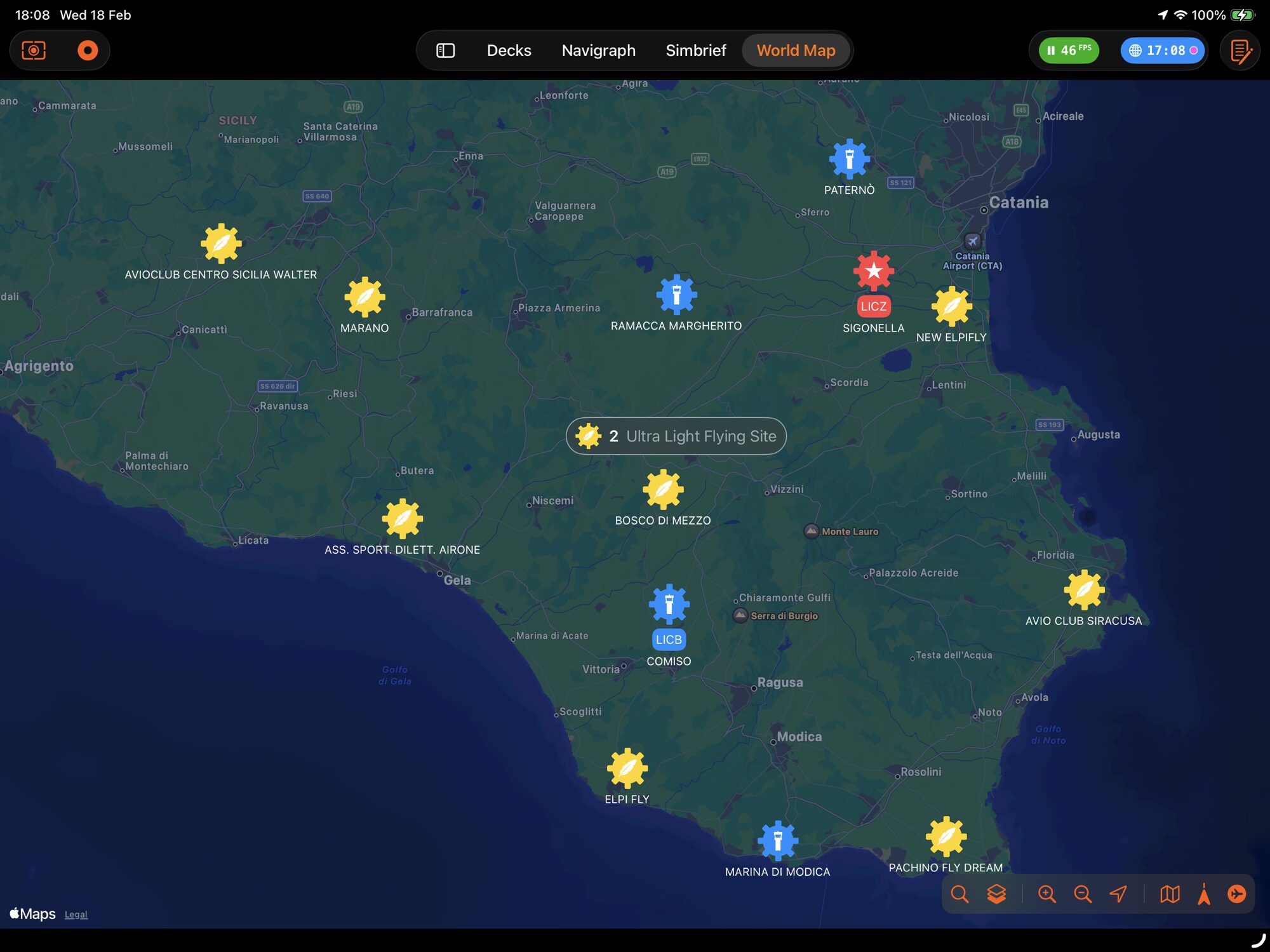
World Map is Flight Deck ONE’s global situational-awareness view. It plots your fleet, nearby airports, navaids, and live weather on an interactive map — and lets you teleport your simulator aircraft to any runway in the world with a single tap. Contents 1. Map Overview Open World Map from the sidebar. The view fills the…
-
My Hangar is your personal aircraft fleet manager inside Flight Deck ONE. It lets you store, organise, and quickly access every aircraft you fly in X-Plane — complete with location tracking, maintenance records, and a live map view. This guide covers every screen and every action available in the feature. Contents 1. Hangar Overview Open…
-
Dashboard widgets let you bring your most important controls inside your decks, instead of hunting for them in the main Dashboard.
-
Flight Deck ONE Bravo 4 is here! This release is all about Decks finalization and general fixes. No new features are planned until Charlie 1 will be released to the public. Decks All planned Decks are there, some feature complete, some with some work still to be done. During the following days, each Deck will…